Every great app starts with a great first impression. The splash screen is the very first thing a user sees when they open your app — and a well-designed, animated splash screen instantly communicates quality, professionalism, and attention to detail.
In this guide, we build a professional Flutter splash screen with smooth animations — fade in, scale, and slide effects — with full source code and step-by-step explanation.
What is a Splash Screen in Flutter?
A splash screen is the initial screen displayed while your app loads in the background. It typically shows your app logo, brand name, and a subtle animation before navigating the user to the home or onboarding screen.
A professional splash screen should:
- Display for 2 to 3 seconds maximum
- Include smooth, meaningful animation
- Match the app's brand colors and typography
- Navigate automatically to the next screen
What We Are Building
A professional splash screen featuring:
- Animated logo with scale and fade effect
- Animated app name with slide up effect
- Animated tagline with fade in delay
- Circular progress indicator at the bottom
- Auto navigation to home screen after 3 seconds
- Clean dark gradient background
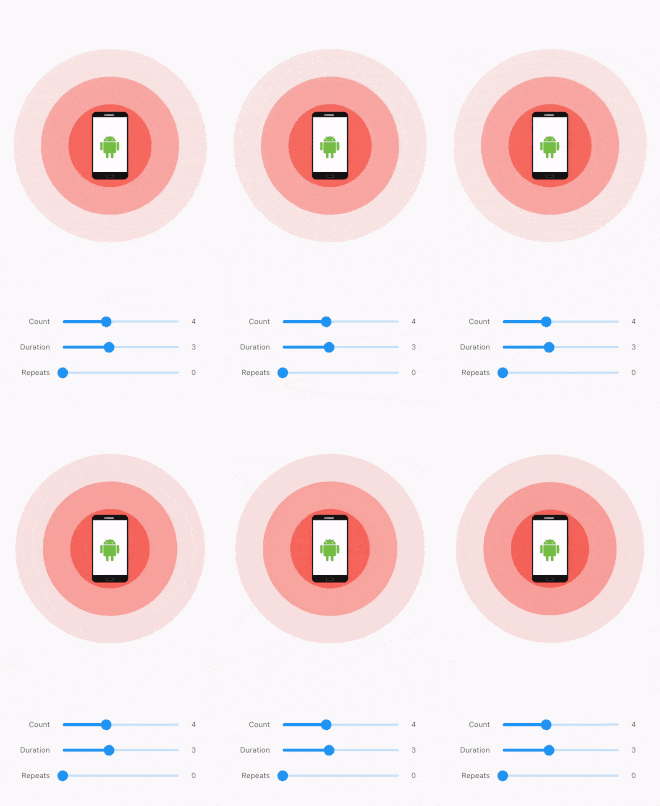
- flutter splash screen with animation

Step 1: Project Setup
Create a new Flutter project:
dart
flutter create flutter_splash_screen
cd flutter_splash_screen
No additional packages needed — built entirely with Flutter's built-in animation system.
Step 2: Update main.dart
import 'package:flutter/material.dart';
import 'screens/splash_screen.dart';
import 'screens/home_screen.dart';

void main() {
  runApp(const MyApp());
}

class MyApp extends StatelessWidget {
  const MyApp({super.key});

  @override
  Widget build(BuildContext context) {
    return MaterialApp(
      title: 'Flutter Splash Screen',
      debugShowCheckedModeBanner: false,
      theme: ThemeData(
        useMaterial3: true,
      ),
      home: const SplashScreen(),
      routes: {
        '/home': (context) => const HomeScreen(),
      },
    );
  }
}
Step 3: Create the Splash Screen
Create a new file lib/screens/splash_screen.dart.
import 'package:flutter/material.dart';

class SplashScreen extends StatefulWidget {
  const SplashScreen({super.key});

  @override
  State<SplashScreen> createState() => _SplashScreenState();
}

class _SplashScreenState extends State<SplashScreen>
    with TickerProviderStateMixin {

  late AnimationController _logoController;
  late AnimationController _textController;
  late AnimationController _taglineController;
  late AnimationController _progressController;

  late Animation<double> _logoScale;
  late Animation<double> _logoFade;
  late Animation<Offset> _textSlide;
  late Animation<double> _textFade;
  late Animation<double> _taglineFade;
  late Animation<double> _progressFade;

  @override
  void initState() {
    super.initState();
    _initAnimations();
    _startAnimations();
    _navigateToHome();
  }

  void _initAnimations() {
    _logoController = AnimationController(
      vsync: this,
      duration: const Duration(milliseconds: 1000),
    );

    _textController = AnimationController(
      vsync: this,
      duration: const Duration(milliseconds: 800),
    );

    _taglineController = AnimationController(
      vsync: this,
      duration: const Duration(milliseconds: 600),
    );

    _progressController = AnimationController(
      vsync: this,
      duration: const Duration(milliseconds: 500),
    );

    _logoScale = Tween<double>(begin: 0.0, end: 1.0).animate(
      CurvedAnimation(
        parent: _logoController,
        curve: Curves.elasticOut,
      ),
    );

    _logoFade = Tween<double>(begin: 0.0, end: 1.0).animate(
      CurvedAnimation(
        parent: _logoController,
        curve: const Interval(0.0, 0.6, curve: Curves.easeIn),
      ),
    );

    _textSlide = Tween<Offset>(
      begin: const Offset(0, 0.5),
      end: Offset.zero,
    ).animate(
      CurvedAnimation(
        parent: _textController,
        curve: Curves.easeOutCubic,
      ),
    );

    _textFade = Tween<double>(begin: 0.0, end: 1.0).animate(
      CurvedAnimation(
        parent: _textController,
        curve: Curves.easeIn,
      ),
    );

    _taglineFade = Tween<double>(begin: 0.0, end: 1.0).animate(
      CurvedAnimation(
        parent: _taglineController,
        curve: Curves.easeIn,
      ),
    );

    _progressFade = Tween<double>(begin: 0.0, end: 1.0).animate(
      CurvedAnimation(
        parent: _progressController,
        curve: Curves.easeIn,
      ),
    );
  }

  void _startAnimations() async {
    await Future.delayed(const Duration(milliseconds: 300));
    _logoController.forward();

    await Future.delayed(const Duration(milliseconds: 700));
    _textController.forward();

    await Future.delayed(const Duration(milliseconds: 400));
    _taglineController.forward();

    await Future.delayed(const Duration(milliseconds: 300));
    _progressController.forward();
  }

  void _navigateToHome() async {
    await Future.delayed(const Duration(seconds: 3));
    if (mounted) {
      Navigator.pushReplacementNamed(context, '/home');
    }
  }

  @override
  void dispose() {
    _logoController.dispose();
    _textController.dispose();
    _taglineController.dispose();
    _progressController.dispose();
    super.dispose();
  }

  @override
  Widget build(BuildContext context) {
    return Scaffold(
      body: Container(
        width: double.infinity,
        height: double.infinity,
        decoration: const BoxDecoration(
          gradient: LinearGradient(
            colors: [
              Color(0xFF0D0D1A),
              Color(0xFF1A1040),
              Color(0xFF0D0D1A),
            ],
            begin: Alignment.topCenter,
            end: Alignment.bottomCenter,
          ),
        ),
        child: SafeArea(
          child: Column(
            mainAxisAlignment: MainAxisAlignment.center,
            children: [
              const Spacer(flex: 2),
              _buildLogo(),
              const SizedBox(height: 32),
              _buildAppName(),
              const SizedBox(height: 12),
              _buildTagline(),
              const Spacer(flex: 2),
              _buildProgressIndicator(),
              const SizedBox(height: 48),
            ],
          ),
        ),
      ),
    );
  }

  Widget _buildLogo() {
    return FadeTransition(
      opacity: _logoFade,
      child: ScaleTransition(
        scale: _logoScale,
        child: Container(
          width: 120,
          height: 120,
          decoration: BoxDecoration(
            shape: BoxShape.circle,
            color: const Color(0xFF6C63FF).withOpacity(0.15),
            border: Border.all(
              color: const Color(0xFF6C63FF).withOpacity(0.4),
              width: 2,
            ),
          ),
          child: const Icon(
            Icons.rocket_launch_rounded,
            size: 56,
            color: Color(0xFF6C63FF),
          ),
        ),
      ),
    );
  }

  Widget _buildAppName() {
    return SlideTransition(
      position: _textSlide,
      child: FadeTransition(
        opacity: _textFade,
        child: const Text(
          'AppInvent',
          style: TextStyle(
            fontSize: 36,
            fontWeight: FontWeight.bold,
            color: Colors.white,
            letterSpacing: 2,
          ),
        ),
      ),
    );
  }

  Widget _buildTagline() {
    return FadeTransition(
      opacity: _taglineFade,
      child: const Text(
        'Build. Launch. Grow.',
        style: TextStyle(
          fontSize: 14,
          color: Color(0xFF6C63FF),
          letterSpacing: 3,
          fontWeight: FontWeight.w500,
        ),
      ),
    );
  }

  Widget _buildProgressIndicator() {
    return FadeTransition(
      opacity: _progressFade,
      child: const SizedBox(
        width: 24,
        height: 24,
        child: CircularProgressIndicator(
          strokeWidth: 2,
          valueColor: AlwaysStoppedAnimation<Color>(
            Color(0xFF6C63FF),
          ),
        ),
      ),
    );
  }
}
Step 4: Create the Home Screen
Create lib/screens/home_screen.dart:
import 'package:flutter/material.dart';

class HomeScreen extends StatelessWidget {
  const HomeScreen({super.key});

  @override
  Widget build(BuildContext context) {
    return Scaffold(
      backgroundColor: const Color(0xFF0D0D1A),
      appBar: AppBar(
        backgroundColor: const Color(0xFF1A1040),
        title: const Text(
          'AppInvent',
          style: TextStyle(
            color: Colors.white,
            fontWeight: FontWeight.bold,
            letterSpacing: 1,
          ),
        ),
        centerTitle: true,
      ),
      body: const Center(
        child: Column(
          mainAxisAlignment: MainAxisAlignment.center,
          children: [
            Icon(
              Icons.check_circle_rounded,
              size: 64,
              color: Color(0xFF6C63FF),
            ),
            SizedBox(height: 16),
            Text(
              'Welcome to AppInvent!',
              style: TextStyle(
                fontSize: 22,
                fontWeight: FontWeight.bold,
                color: Colors.white,
              ),
            ),
            SizedBox(height: 8),
            Text(
              'Splash screen loaded successfully.',
              style: TextStyle(
                fontSize: 14,
                color: Colors.grey,
              ),
            ),
          ],
        ),
      ),
    );
  }
}
Animation Concepts Explained
1. TickerProviderStateMixin
Used when you need multiple AnimationController instances in a single widget. It provides the vsync ticker that syncs animations with the device's screen refresh rate — preventing unnecessary rendering when the app is in the background.
2. AnimationController
The engine of every animation. It controls duration, playback direction, and current value. Always dispose controllers in dispose() to prevent memory leaks.
3. CurvedAnimation
Wraps a linear animation with a curve to make it feel natural. We use:
Curves.elasticOut— for the logo bounce effectCurves.easeOutCubic— for the text slide upCurves.easeIn— for smooth fade ins
4. Interval
Controls which portion of the parent animation's timeline a child animation plays on. Interval(0.0, 0.6) means the animation completes during the first 60% of the parent controller's duration.
5. Staggered Animation Timing
flutter splash screen with animation
await Future.delayed(const Duration(milliseconds: 300));
_logoController.forward();      // Logo appears first

await Future.delayed(const Duration(milliseconds: 700));
_textController.forward();      // Then app name slides up

await Future.delayed(const Duration(milliseconds: 400));
_taglineController.forward();   // Then tagline fades in

await Future.delayed(const Duration(milliseconds: 300));
_progressController.forward();  // Finally the loader appears
Staggering animations creates a natural, cinematic feel — every element enters at the right moment without overwhelming the user.
Customization Guide
Change the brand color:
Replace all Color(0xFF6C63FF) instances with your own brand color hex code.
Change the logo icon:
Replace Icons.rocket_launch_rounded with any Flutter Material icon or your own Image.asset widget.
Change the duration:
Adjust the Future.delayed in _navigateToHome():
await Future.delayed(const Duration(seconds: 3)); // change to 2 or 4
Add a background image:
Replace the gradient with:
decoration: BoxDecoration(
  image: DecorationImage(
    image: AssetImage('assets/splash_bg.png'),
    fit: BoxFit.cover,
  ),
),
Best Practices for Flutter Splash Screens
- Keep the splash screen between 2 to 3 seconds — longer feels like a bug
- Always use
mountedcheck before navigating to avoid setState errors after dispose - Use
pushReplacementNamedso the user cannot go back to the splash screen - Match splash screen colors with your app's overall theme for a seamless transition
- Test on both Android and iOS — animation timing can differ slightly between platforms
- For production apps, consider using the
flutter_native_splashpackage for the native OS-level splash screen that appears before Flutter initializes
Folder Structure
lib/
├── main.dart
└── screens/
    ├── splash_screen.dart
    └── home_screen.dart
Conclusion
A professional animated splash screen sets the tone for your entire app. With Flutter's powerful animation system — AnimationController, CurvedAnimation, FadeTransition, ScaleTransition, and SlideTransition — you can build cinematic, polished splash screens with just a few dozen lines of code.
The full source code above is production-ready — just swap in your brand colors, logo, and app name and you are good to go.
Happy coding!
Related Articles
- Android Developer vs Flutter Developer: Which Should You Choose in 2026?
- Flutter Developer vs Swift Developer: Which is Best for Your App?
- Flutter Developer vs React Native Developer: Full Comparison 2026
- How to Setup GitHub on Your MacBook and Upload Your First Project
- Top 10 Companies Using Flutter in Production Apps 2026
- A Responsive flutter onboarding UI screen source code
- Flutter PageView Widget — Build a Skippable Onboarding Screen
- Flutter 2026 — All Latest Updates, Features & What's New